
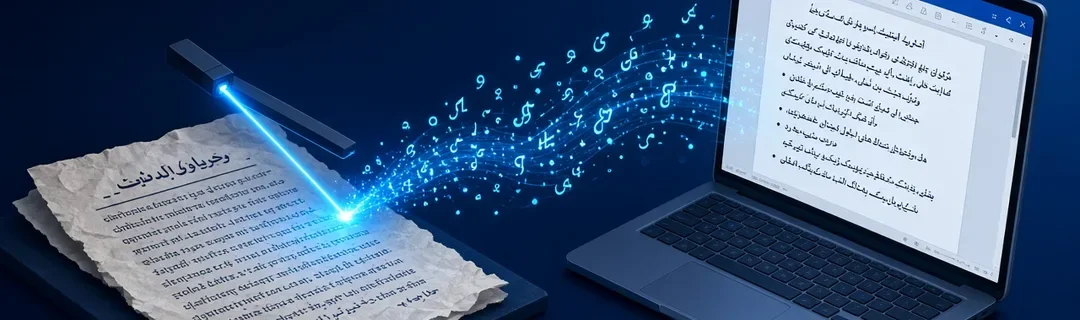
Someone sends you a PDF and you need to change a few lines, reuse a paragraph or copy a list of names. If the PDF came from Word, copying is easy. If it was scanned on a photocopier or with a phone app, there is no text inside at all, only pictures of pages.
That is where a PDF to Word converter with OCR (optical character recognition) helps. This guide covers how conversion works, how to get clean results from scans, and what a free tool can and cannot do.
Two Kinds of PDF, Two Kinds of Conversion
alt: "Flat illustration of a scanned PDF page being converted into an editable Word document, with a magnifying glass" -->
Digital (text) PDFs
These are created by software such as Word, Google Docs or accounting packages. The letters are stored as real text, so you can select and copy words. Conversion mostly means pulling out the text and rebuilding lines and paragraphs.
Scanned (image) PDFs
These come from scanners and phone scanning apps. Each page is a photograph. Software has to "read" the image and recognise the letter shapes. That process is OCR.
A quick test
Open the PDF and press Ctrl+F (or Cmd+F). Search for a word you can clearly see.
- If it is found, you have a text PDF.
- If nothing is found, it is a scan and needs OCR.
How to Convert a PDF to Word, Step by Step
<!-- INLINE IMAGE 2 HERE: inline-2.webp alt: "Four-step flat illustration: choose PDF, pick OCR language, convert, download the Word file" -->Our free PDF to Word converter handles both types:
- Open the tool in any modern browser on a laptop or phone.
- Choose your PDF. The file is processed in your browser, not uploaded to a server.
- Pick the OCR language for scanned files: English, Hindi or Urdu.
- Convert and download the .docx file.
- Open it in Word, Google Docs or LibreOffice and proofread.
Each PDF page is separated by a page break in the Word file, so long documents stay easy to navigate.
Why the language setting matters
OCR engines load a model for one script at a time. Run English OCR on an Urdu newspaper clipping and you get a few random Latin characters. Switch to Urdu and the same page produces readable words.
The same applies to Hindi in Devanagari. If a page mixes languages, choose the one used for most of the text and fix the rest by hand.
Tips for Better OCR Results from Scans
OCR quality depends far more on the input image than on the software.
- Scan at a decent resolution. Around 300 DPI is a good target for text.
- Keep the page straight. Skewed or curled pages confuse line detection.
- Use even lighting for phone scans. Avoid shadows and glare.
- Avoid copies of copies. Each photocopy loses contrast; scan the original if you can.
- Crop out clutter such as fingers, table edges and dark borders.
Ornate scripts such as Nastaliq Urdu are harder to read than plain printed English, so proofread headlines and joined letters carefully.
What a Free Converter Keeps, and What It Does Not
This tool is built for text extraction: getting the words into an editable document quickly and privately. It does not try to recreate:
- complex multi-column layouts,
- tables with merged cells and borders,
- embedded images, logos or signatures,
- exact fonts and spacing.
For everyday jobs like editing a letter, reusing a notice or retyping an old certificate, getting the text out is the hard part. Formatting takes a few minutes afterwards.
If you need to work with pages rather than text, a utility such as merge PDF files is the faster route.
Privacy: why in-browser processing helps
PDFs often hold personal information: ID copies, salary slips, contracts, medical reports. Because this converter runs inside your browser, the file stays on your device during conversion. The OCR language data downloads once and is cached, so later conversions are faster.
Speed depends on your device. For a long scan on an older phone, try a few pages first.
Common Problems and Quick Fixes
- Only a few strange characters appear. The OCR language is probably wrong, or the scan is too low-resolution.
- Lines break in odd places. Use Word's Find and Replace to remove extra line breaks.
- Numbers and letters are mixed up. 0/O and 1/l look alike; check amounts and dates.
- Nothing happens on my phone. Update your browser and use a stable connection for the first language download.
When a Simple Tool Is Not Enough
Free tools are ideal for one-off conversions. But if your team handles hundreds of scanned forms, invoices or applications every month, you may need a structured workflow: automatic data extraction into fields, validation, search and storage.
That is the kind of system we build through our custom document automation software work, shaped around the documents you actually handle. For example, we moved Ashok Masale's distribution process from manual work to an online system, which saves them about Rs 1 lakh a month.
Frequently Asked Questions
Is the PDF to Word converter really free?
Yes. The tool is free to use and runs in your browser.
Can it convert Hindi and Urdu scanned PDFs?
Yes. Choose Hindi or Urdu as the OCR language before converting. Clear, straight scans at about 300 DPI give the best results.
Is my file uploaded to a server?
No. Conversion happens inside your browser, so the document stays on your device.
Will the Word file look exactly like the PDF?
Not exactly. The tool focuses on extracting editable text. Complex tables, images and exact fonts may need tidying in Word.
Conclusion
- Check whether your PDF is text-based or scanned.
- For scans, pick the correct OCR language.
- Use a clean, straight, high-resolution scan.
- Expect text, not layout, and proofread names and numbers.
Need More Than a Free Tool?
PKD Ventures builds free tools like this one alongside websites, business apps and custom software for growing businesses. If paperwork is slowing your team down, let's talk about a better system. If you need a custom tool for your office? See our business app development services
- Email: support@pkdventures.in
- WhatsApp: +91-9559773388